After installing 7-Zip, Copy C:\Program Files\7-Zip\7z.exe to C:\WINDOWS\system32.
Then you can use 7-Zip on your console as below,
Related post: 7-Zip Free file archiver with High compression ratio
Showing posts with label tools. Show all posts
Showing posts with label tools. Show all posts
Sunday, October 7, 2007
How to use 7-Zip on command line prompt.


7-Zip Free file archiver with High compression ratio
7-Zip is a file archiver with a high compression ratio.
The following table show 7-Zip's high compression ratio comparing with other popular tools.
| Mozilla Firefox | Google Earth | |||
|---|---|---|---|---|
| 161 files 15,684,168 bytes | 115 files 23,530,652 bytes | |||
| Compressed size | Ratio | Compressed size | Ratio | |
| 7-Zip 4.23 (7z format) | 4621135 | 100% | 6109183 | 100% |
| WinRAR 3.50 | 5021556 | 109% | 6824892 | 112% |
| CABARC 5.1 | 5131393 | 111% | 7434325 | 122% |
| WinZip 10.0 beta (maximum-PPMd) | 5277118 | 114% | 8200708 | 134% |
| 7-Zip 4.23 (zip format) | 6222627 | 135% | 8909446 | 146% |
| WinZip 10.0 beta (maximum-portable) | 6448666 | 140% | 9153898 | 150% |
The main features are as belows,
- High compression ratio in new 7z format with LZMA compression
- Supported formats:
- Packing / unpacking: 7z, ZIP, GZIP, BZIP2 and TAR
- Unpacking only: RAR, CAB, ISO, ARJ, LZH, CHM, Z, CPIO, RPM, DEB and NSIS
- For ZIP and GZIP formats, 7-Zip provides a compression ratio that is 2-10 % better than the ratio provided by PKZip and WinZip
- Self-extracting capability for 7z format
- Integration with Windows Shell
- Powerful File Manager
- Powerful command line version
- Plugin for FAR Manager
- Localizations for 63 languages

You can download this good free file archiver here.
Sunday, September 30, 2007
How to retrive a closed tab in FireFox, Opera, IE7
When you close a tab in FireFox, Opera, IE7 by mistake you can easily restore it.

In case of FireFox
By pressing Ctrl+Shift+T
Also it restore more than one closed tab. And besides it restore the position of the closed tab.
In case of Opera
By pressing Ctrl+Alt+Shift+Z
In case of IE7
It does not support restoring for closed tabs. But after installing IE7 Open Last Closed Tab 3.5 which is a free add-in you can do it by pressing Alt+X as FireFox and Opera.
You can download this useful add-in here.
Ref: Closed An IE Browser Tab By Mistake? Get It Back Easily
Using On/Offline Blog Editing Programs
All of Blog services or programs provide their own editing program.
But the functionality of blogging programmes is not good as a word processor. To use powerful features of a word processor You may first write a post using a word process (e.g. MS Word) and copy and paste to your blog editing program when your are on-line.
Copying a word document and pasting it into a blogging program is not always what you want and intend.
It can be create unnecessary coding behind behind scenes and can not be rightly shown as you intend (e.g. font, intend, align, etc).
To avoid above problems, let's use the following blog editing programs.
MS provides a good free blog editing program.
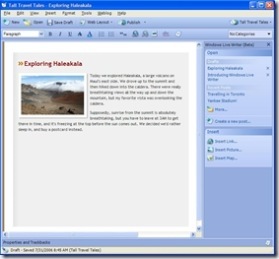
Windows Live Write supports the following powerful features,
WYSIWYG Authoring
You can author your post and know exactly what it will look like before you publish it.
Photo, Map publishing
Compatibility
Windows Live Write works with Windows Live Spaces, Blogger, LiveJournal, TypePad, WordPress (and many others)
On/Offline Editing
You can write a post offline and upload it to your blog. And you can get the existing posts from your blog and can edit/upload it.
Powerful Editing Features
Table, intend, font, underline, bold, block quote, strike out, etc
You also see and edit HTML code.
You can freely download this nice program here.
Like Windows Live Write, Qumana is a good free blog editing program.
Also, you can insert an advertisement called Q-Ads into your post.
And Qumana support the list of existing posts with their content. you can open/edit them as below,
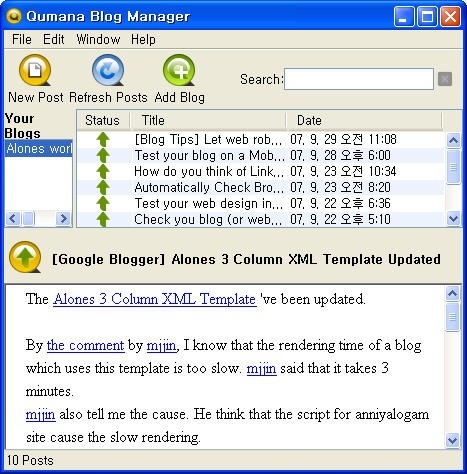
Qumana supports Spellcheck which is not found in Windows Live Writer.
But I could not find how to insert table into a post. (windows Live Writer can do it)
You can download this free tool here.

It is a Firefox add-on. This add-on supports basic functionality for editing. But you should be always on line.
And you can use commercial tools like Ecto, BlogJet and such.
I could not have any chance to use them :).
Ref: Improve Your Workflow with a Blog Editing Program
Saturday, September 29, 2007
[Blog Tips] Let web robots know your blog has been updated
People want to make their blog (or website) take more traffic using such technique as SEO.
I think that ping services are good method to improve the volume of traffic to your website.
In the blogosphere, pinging allow both search engines and blog directories to know that your blog has been updated. And the result of the notification their web robots will visit to your website for crawling. (i.e. they read the new content and apply it to their database)
A ping is just a piece of text containing your website name and the URL. Generally ping is sent in the XML format.
Ping services automatically process the above notification.
There are many ping services as below,
- huge list of RPC and RPC2 services (over 56 RPC and RPC2) by EliottBack
- 20-25 RPC and RPC2 service by Emily
- List of Ping Services by Daily Blog Tips (over 50)
But I think that you need not to use all of above ping services because ping services ping each other. Therefore I suggest the following ways.
In case of Google Blogger
If you use Google Blogger, the ping to Google Blog Search Engine would be automatically sent after your blog has been updated.
You can check it with "Send Pings" options on Settings/Publishing page of Dashboard.
You can manually ping Google Blog Search Engine by this link.
For more details, see this document of Google.
If your blog is claimed at Technorati, use Technorati ping service.
It allows Technorati to know that the claimed website has been updated.
I think that iPings is good service. I usually use this service.
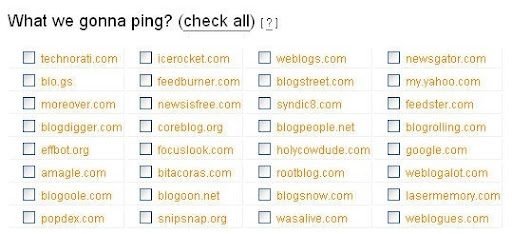
This service automatically ping 32 ping services.
After access this link, type only your website title and URL and RSS Feed URL. Then select targets to ping as below,
Ref
- Ping Service Bookmarks
- XML-RPC Ping Services For Your Blog
- List of Ping Services
Friday, September 28, 2007
Test your blog on a Mobile Phone using web-based emulator
According to a research, After 1 year about 1.3 billion people will connect to the Internet via mobile phones.
To a private (or team) Blog as well as a big website such as Google it will be very important issue making website compatible with visitors browsing from mobile phones.
You can easily test how your blog (or website) would look on a mobile phone by using a web-based emulator provided by dotMobile.
First, access to this link.
Second, enter URL to test.
The emulator of dotMobile supports both Sony K750 model and Nokia N70 model.
The following snapshot is one of this Blog.
For your future visitor how about checking?
Ref: Test Your Website on a Mobile Phone
Sunday, September 23, 2007
Automatically Check Broken Links in your website using Dead-Links.com
You may include many links in your posts both inbound and outbound.
But after several days or months, do you guarantee that links still rightly work?
It is difficult to check if all of links are valid.
In case of this, you can automatically check all of links through the crawler of Dead-Links.com. Step1. Access the Reciprocal Link Checker website.
Step2. Put the address of your website.
Step3. Just click "Launch The Spider!" button.
Then, a little spider will read HTML code and check for the broken links.
Maximum execution time is 45 minutes.
The result show the following lists for you,
- Crawling Internal Links
- Checking External Links
- Valid Links
Ref: Give Your Blog a Checkup
Saturday, September 22, 2007
Test your web design in different browser and OS
Though your website has good looks in FireFox on WindowsXP, in other browser or different OS it looks ugly.
Though using IE Tab of FireFox you can check if your website rightly load in both FireFox and IE, you can not test it in all of browser and on all of OS.
But you can do it by BrowserShots org.
Access this site, and enter a URL to test.
Then you can see the following result.
It may take more than 30 minutes but you can enlarge a screen shot by clicking it and download all of screen shots.
Ref: Give Your Blog a Checkup
Subscribe to:
Posts (Atom)